Showing posts with label Adsense. Show all posts
Tuesday, December 13, 2011

Increase Your Revenue From Google Adsense

Hai guys, before this i've shared to you the "Most Clicked Adsense Place" and now i will share more adsense tricks. Now we will modify the ads below the title post, and maybe it will make your visitor will click them.
And it will look like this :
Ok now lets follow this tips :

1. Login to blogger
2. Layout > Edit HTML > Expand Widget Template
3. Now find </b:skin> code, and paste this code below BEFORE </b:skin> code
#iklan250{
 float:left;
 width:280px;
 text-align:center;
 background:transparent url(https://blogger.googleusercontent.com/img/b/R29vZ2xl/AVvXsEhhFC6t9OC55NpUtNC85xTVCgx2PC1RZfCYyMvDiJi6TgMnsQ30zF2_ZeGm7BfKpS0FXoRJafQ8t6LnFMAms9DwiZZ3oIIdXFZHez4kcBpoHNlKDb7lzo3hSZKMJ-FV1r5UM_fFDn7EKPU/d/ads250x250.png) center center no-repeat;
 padding:5px 10px 10px 5px;
}
4. And now search this code
<div class='post-body entry-content' expr:id='&quot;post-body-&quot; + data:post.id'>
Info : 
Maybe you'll see 2 code like that, you must choose the first code.
5. Then add this HTML before that code
<div id='iklan250'>
Paste Your Ads Here [After Parse your ads]
</div>
And Then paste your ads between that code. Or replace the red text marked with your ads code.
IMPORTANT :
The ads size must be 250x250. But before you paste that you must parse the ads code first. Click here to parse HTML code

Ok that's it, now your adsense revenue will be increased. Thanks for visit this blog.
Source : http://blogyahyagan.blogspot.com <---this is my 2nd blog, lets check out whats new?

See this Article, maybe is great "Get 3 Way Backlink For Free"
Blog Yahyagan|Web Design|SEO Tutorial|Blogging Tutorial|Adsense Tutorial
Read More "Increase Your Revenue From Google Adsense"
Saturday, November 05, 2011

Google Adsense Not Appear On Your Blog?

Hei guys now i will share a tutorial to you.
Yesterday one of my visitor give a comment on this post. He said "I have approved at google adsense, but the ads not appear on my blog". Now i will to try resolve his problem

1. Check your approved email first

The email maybe like this if youre approved
2. After check your email, now you must login to google adsense
3. In Google adsense click  "My Ads" tab


4. After that click URL Channel on the My Ads tab

5. After that click "new url channel"


6. Fill it with your blog address

7. After succesfull to add a channel, now create your ads. Customize the ads, choose the size etc. And then click "Get Code". After you get the code like this. Copy the code to your blog. Layout-Add HTML/Javascript-And then Paste the Code. And save template.
8. Wait 10-15 to get your ads appear on your blog.
Place your ads in the right Place,  the most clicked adsense place
Read More "Google Adsense Not Appear On Your Blog?"
Thursday, November 03, 2011

The Most Clicked Adsense Place

Your google adsense not appear on your blog, although you have approved? Click Here to resolve it
Follow this tutorial guys

  1. Put a 720x90 ads on your header wrapper
  2. Put 300x250 ads on your middle post
  3. And put your ads on the left not in the right. Because people reads article from the left to right.
Is this work?
You can make some trial for your ads
If you get big revenue from google its mean this is work for you, if doesnt you cant try and try again until you get the right place for your blog.
How to get Approved email from google adsense? Click here
Read More "The Most Clicked Adsense Place"

How To Approved At Google Adsense (100% Approved)

Have approved at google adsense? And want to earn many pageview every day? Click Here, its really working for you
For the second time i want to tell you that i've approved at google adsense, and now im feeling very happy. Please support me by clicking the ads. If you're my subscriber now i want to share to you how to approved at google adsense, and its work for me as you can see!! And this is really really free 100% Free!!
So what are you waiting for just read this post and prepare some snacks and coffe.
1. You must have a google mail or Gmail, if you doesnt you can create it here
2. Then register at Indyarocks.com or click here
3. After active your indyarocks account, now you must complete your profile at indyarocks! Just fill it completely. Dont forget to change your avatar (Optional)and Upload minimum 10 Photos to your own album. (Optional)
4. After you have complete the profile and upload some photos, now let make some posting. (Minimum 2 Posting in English Language) If you cant spoke english (Like me :p) you can copy-paste article from article directory but remember, you must write the source!!
5. After that let find some friends (Recommended) or you can add me
6. If you have complete all the step that i've given. Now is the time to register at Google Adsense
7. Fill the google adsense application
8. Click Sign Up Button
9. Wait for 2-5 days
10. Check your Email, are you approved or not?
11. And dont forget to update your status at Indyarocks (Recommended)
Sorry i cant give Screenshot because my internet connection is Poor but just trust me its really work. Whatever you think, what ever you say but trust me its really work
If you have approved at Google adsense Click Here to get the place for your ads with High Clicks!!
Read More "How To Approved At Google Adsense (100% Approved)"

Google Adsense Approved

Hei guys, now im feeling very happy because i have approved on google adsense. Since last year i have tried to register on google adsense but always rejected. But now i have approved on google adsense!!
See how can i Approved at Google Adsense (Free Tutorial and 100% Approved)
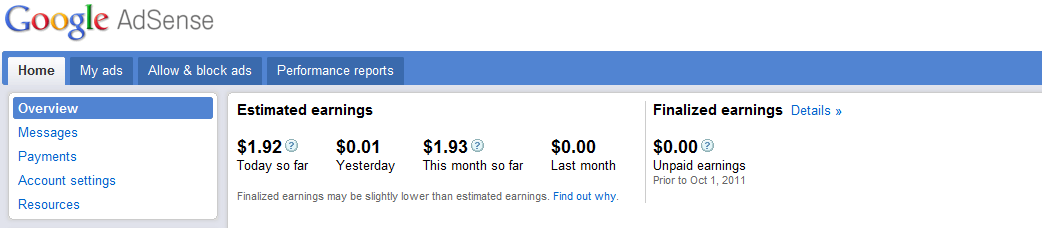
This is the screenshot (Click to enlarge)

The email screenshot (Click to enlarge)
Read More "Google Adsense Approved"
 
My photo
15 years old blogger from Indonesia. Yahya Ayyash. Born on 4th March 1996. Started blogging since 2011, part time blogger. Just an amateur web designer, graphic designer and blogger. Student at SMAN 9 Bandung, at Ten Three Class. Please follow my twitter and like my facebook fan page.